
Cancel Order In Bol.com From Odoo
Cancel a Bol.com order, partially or fully, directly from Odoo. The connector pushes the cancellation to Bol.com via the Retailer API so both systems stay in sync.
When You Can Cancel In Bol.com
The Cancel In Bol.com button on the sale order is available only when:
The order is a Bol.com order (linked to a Bol.com instance).
The order is already canceled in Odoo (state = Canceled).
The order is not already canceled in Bol.com (the cancellation has not yet been synced).
Odoo checks the order on Bol.com first when you click the button. Only items of the order’s fulfilment method that are neither shipped nor cancelled yet are listed. If there are none, Odoo shows an error and does not open the cancel popup.
If you do not see the button, cancel the order in Odoo first (e.g. Cancel action on the quotation/order), then re-open it and look for Cancel In Bol.com.
How To Cancel The Order In Bol.com
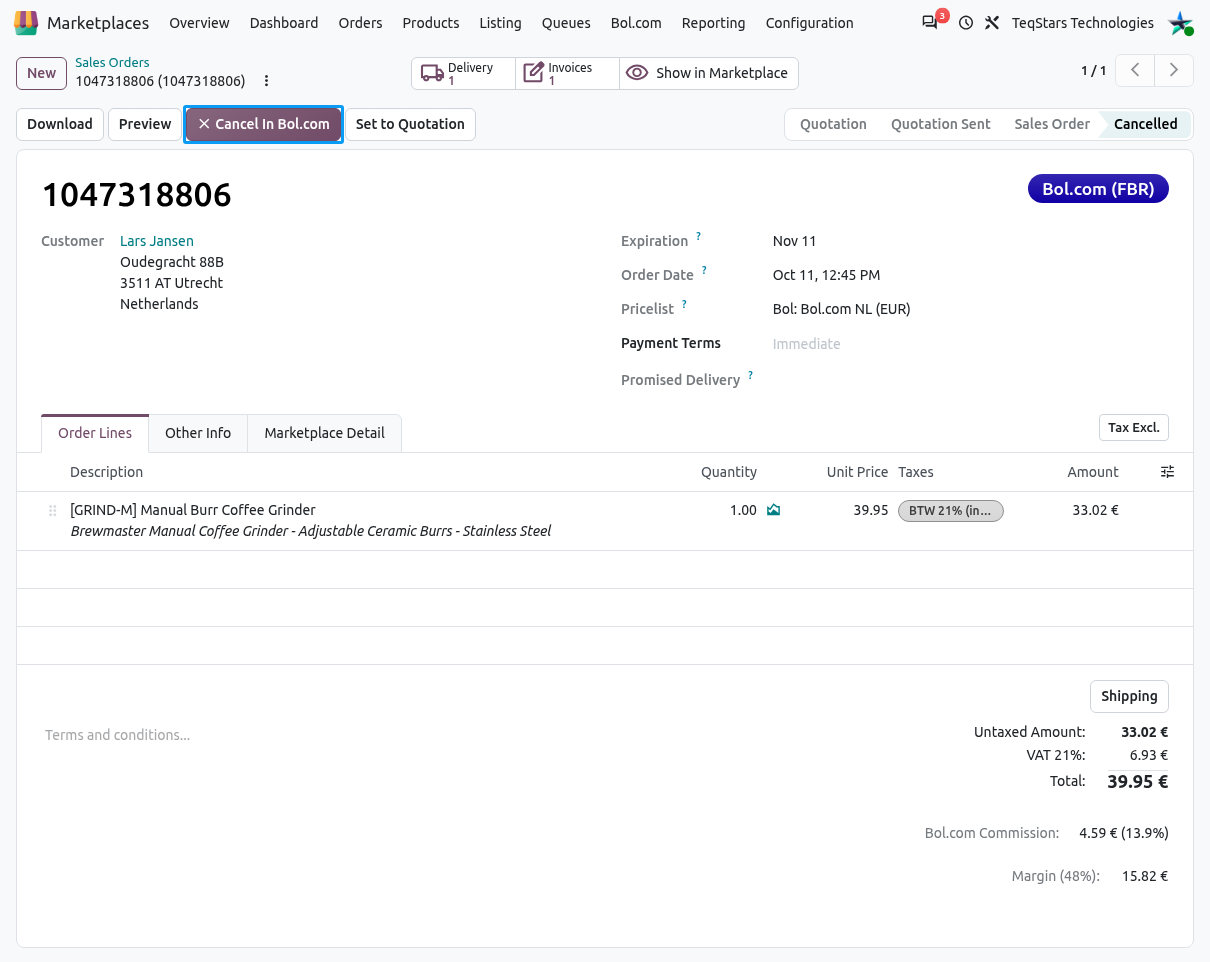
In Odoo, cancel the sale order if it is still active. The order must be in Canceled state.
Open the canceled Bol.com order and click Cancel In Bol.com.
A popup will appear displaying the order items. Configure the cancellation:
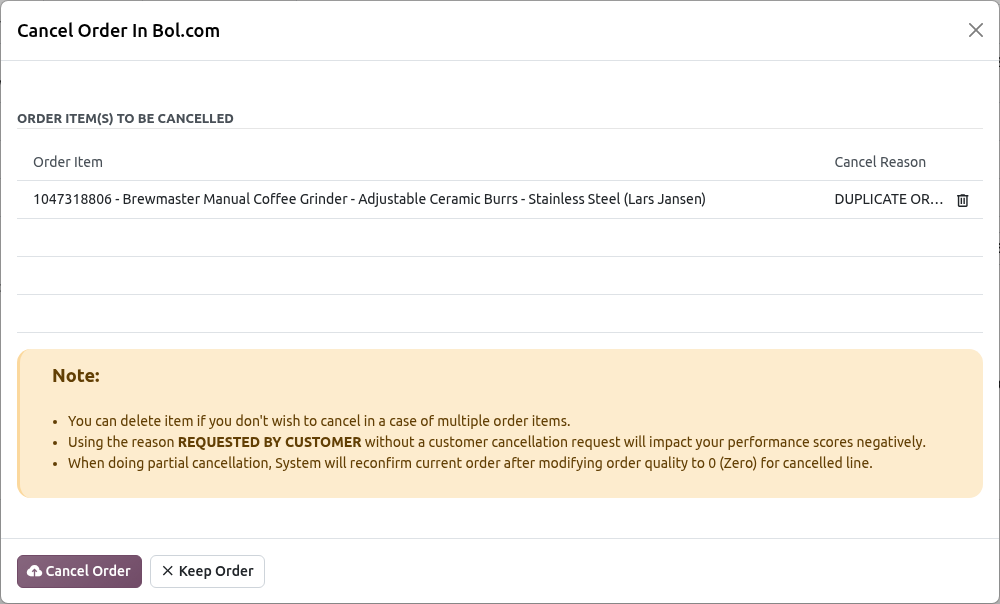
Configure the cancellation:
Partial Cancellation: click the Trash icon next to the items you still want to fulfill, removing them from the cancellation list.
Cancel Reason (required, selected for each item): the reason sent to Bol.com for that item. Available options are:
OUT OF STOCK / ALREADY SOLD THROUGH ANOTHER CHANNEL / WEBSITE
REQUESTED BY CUSTOMER
NOT AVAILABLE IN TIME
THE ITEM WAS NO LONGER IN GOOD CONDITION
I WANTED TO KEEP THE ITEM ANYWAY
I COULDN’T FIND THE ARTICLE ANYMORE
THE PRICING WAS NOT GOOD
SHIPPING COSTS WERE HIGHER THAN EXPECTED
TECHNICAL ISSUE
ARTICLE IS NOT COVERED BY BOL.COM WARRANTY
DUPLICATE ORDER
OTHERWISE
Important
Seller-performance warning: use
REQUESTED BY CUSTOMERonly when there is a real customer request logged on Bol.com. Misuse hurts your seller-performance score.Click the Cancel Order button and confirm the warning to send the cancellation to the Bol.com marketplace. (If you change your mind, click Keep Order to close the window without taking action).
Items are sent to Bol.com one at a time and each cancellation is confirmed by Bol.com before the next one starts.
Expected Outcomes
Success: for every item confirmed by Bol.com, a message is posted in the order’s chatter. Once all items of the order are cancelled, the order is marked as canceled in the marketplace, a final message is posted and the Cancel In Bol.com button disappears.
Already canceled: if every item is already cancelled (or a cancellation was requested) on Bol.com, Odoo marks the order as canceled in the marketplace and shows an error that no items are eligible for cancellation.
Failure: if Bol.com rejects an item, the error is shown and the process stops. Items already confirmed before the failure stay cancelled on Bol.com.
Note
Partial cancellation behavior: the connector sets the canceled item’s quantity to zero and re-confirms the Odoo sale order so your team can deliver the remaining items.
Note
Delivering a partly cancelled order: when you validate a delivery, Odoo checks the order on Bol.com. If a line that has a quantity to deliver was already cancelled on Bol.com (or the customer requested its cancellation), validation is blocked. Set the Done quantity of that item to 0 and validate with No Backorder. See Bol.com Update Order Status From Odoo.