
Downloads, PDF, Full Screen and Refresh
Take a card’s numbers with you, print the whole dashboard, put it on a wall screen or let it refresh by itself.
Download a Card
Open the card’s ⋯ menu (or Expand the card).
Choose Download Excel, Download CSV or Save image.
The file is named after the card and its period. A card that shows how things stand now carries the day you saved it.
The Excel file starts with the card’s name, its period in words, the dashboard filters that change it, the company and the currency. It writes money in the currency’s own format and counts as whole numbers.
A CSV is a plain table whose value column names the currency.
Save image is offered on charts drawn as a picture, not on maps, tables or lists. The image carries the card’s name and its period above the chart.
Downloads hold only what the card shows, with amounts to the cent.
Important
Downloads follow Odoo’s export right: Export set to Allowed on your user. Without it the download entries are not offered: ask your administrator. See Install and Grant Roles.
Print or Save as PDF
On a computer, open ⋯ and choose Print or save as PDF.
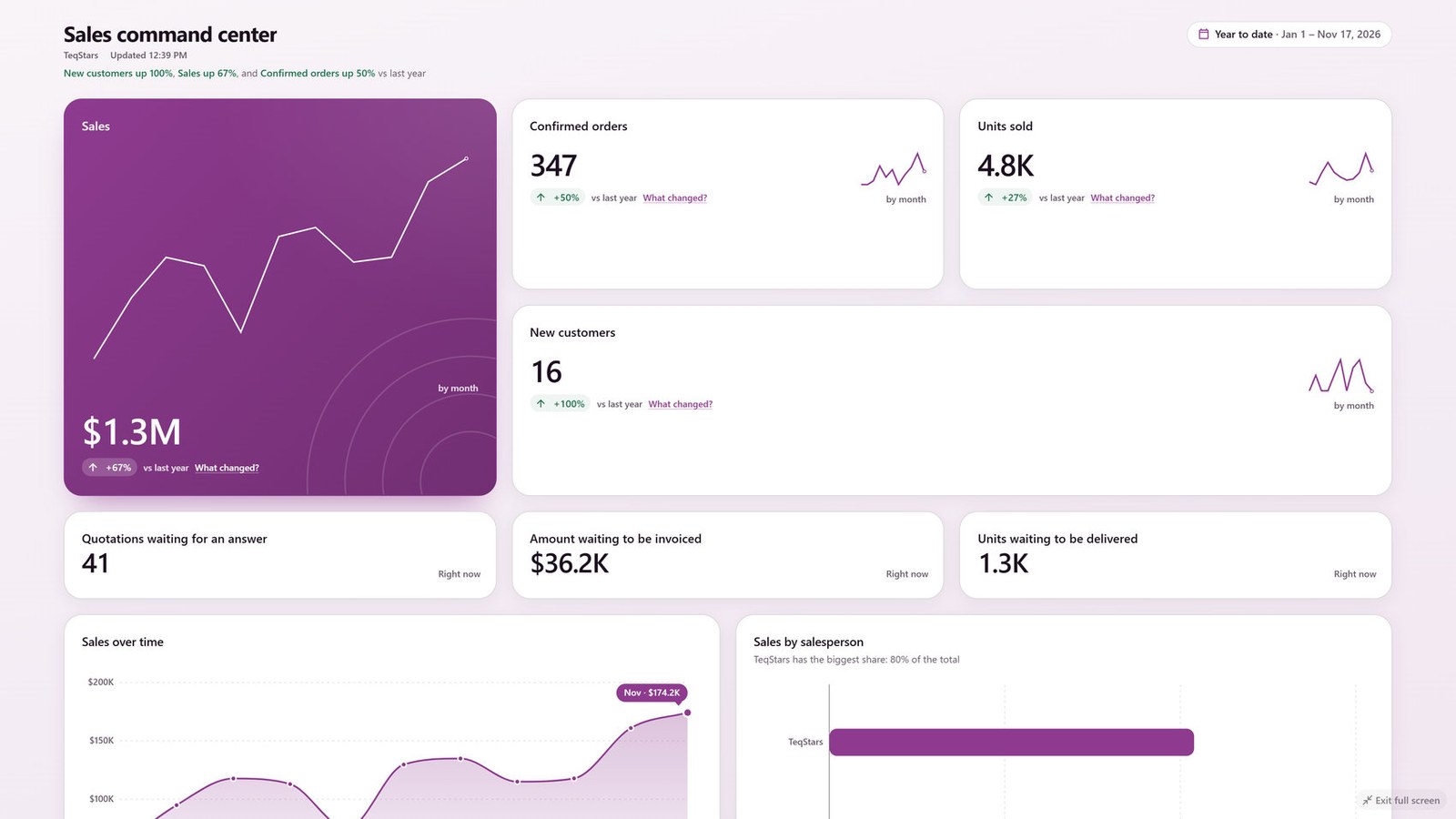
Full Screen for a Wall Display
Open ⋯ and choose Full screen.
Only the title, the period and when the numbers were updated stay. The menus and the card tools step aside.
The dashboard refreshes itself every minute.
Press Esc or click Exit full screen at the bottom right to leave.
Refresh by Itself
Open ⋯ and click Auto-refresh off to choose how often the dashboard refreshes: off (the default), every minute, every 5 minutes or every 15 minutes.
It pauses while the browser tab is hidden and while you edit.
It is remembered for you in this browser only. It never changes what other people see.