
Job Queue, Logs & Operations
The connector processes heavy syncs in the background and keeps a full record of what happened. Two tools help you monitor and troubleshoot, the Job Queue and the Logs.
Job Queue
Large operations (fetching list members, importing campaign activity, exporting contacts, syncing products) are split into background jobs instead of running in one request. This prevents timeouts and lets big data sets sync gradually.
Open the queue from the Queue button on the account dashboard, or .

Each job is processed in order, oldest first, by the Process Brevo Queue scheduled action (every 5 minutes by default). A job that fails is retried automatically up to three times before it is marked as failed.
Tip
If a job is stuck or failed, you can re-trigger processing manually. Persistent failures usually point to a data problem (invalid email, missing SKU). Check the Logs for the exact reason.
Logs
Every sync writes a Brevo Log with its outcome (success or error), so you always know what happened and why. Open them from the Logs button on the account dashboard, or .
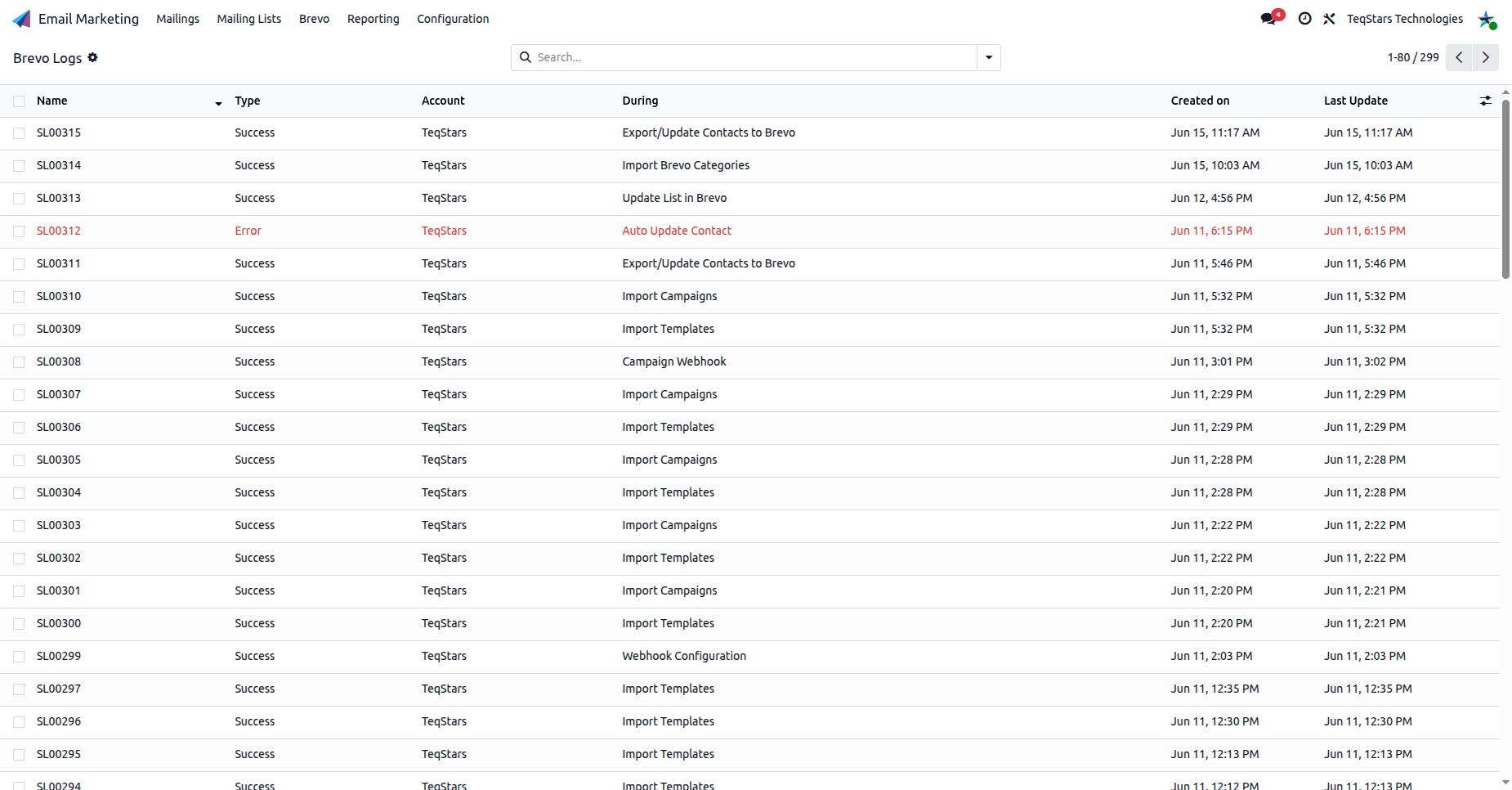
Each log records:
Type:
SuccessorError.During: the operation (export, import, webhook event, batch status…).
Lines: one row per record, with the contact/order Name, the raw Brevo Description (e.g. “Please provide a valid email address.”), and a link back to the related record.
Note
Logs are written for scheduled and batch operations. A manual Export/Update shows the error directly on screen instead.
Note
Brevo logs are cleaned up automatically. Entries older than 2 months are removed on their own, so the log stays relevant without any manual cleanup.