
Lists / Audiences Management
In Brevo, a list is a group of contacts. The connector brings every Brevo list into Odoo as a native Mailing List, so you can manage subscribers, folders and auto-export rules from Odoo while Brevo keeps doing the sending.
Open your lists from .
Import Lists from Brevo
Go to .
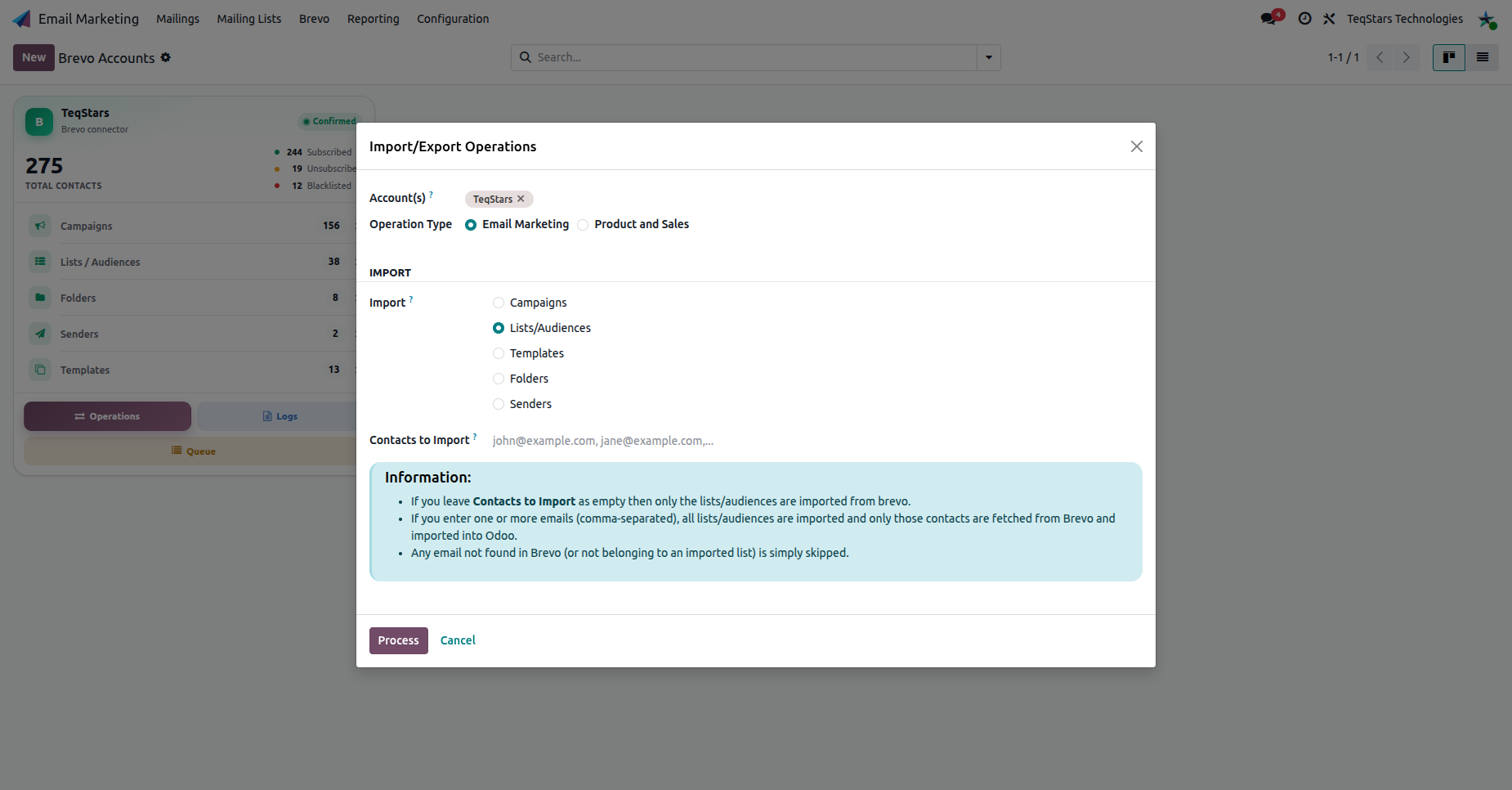
Select your Account(s), set Operation Type to Email Marketing, choose Lists/Audiences, and click Process.
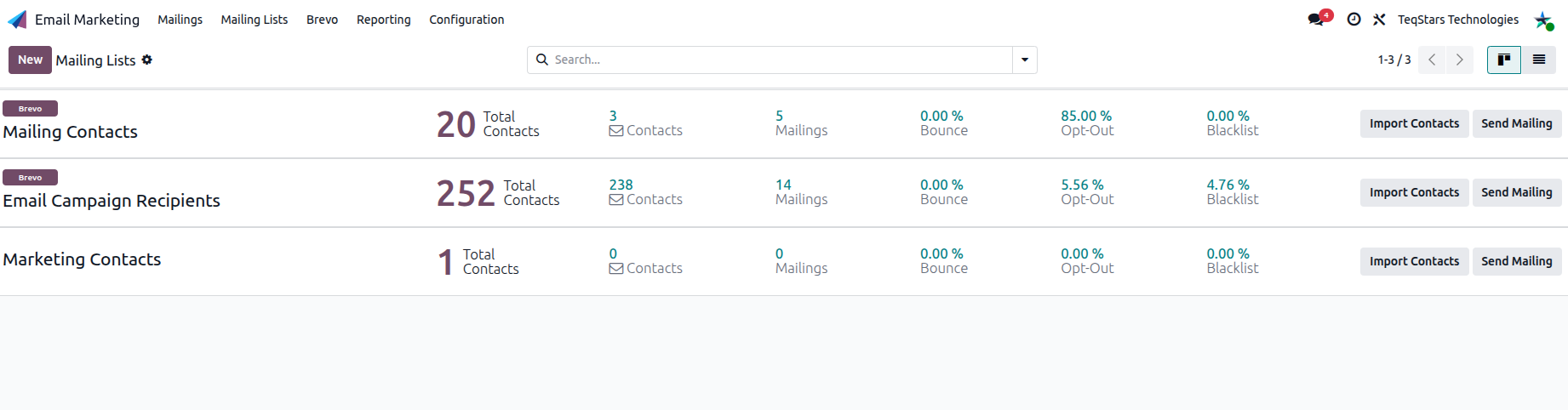
Each imported list also appears as a mailing list (tagged Brevo) in , with its subscriber, unsubscriber and blacklist counts.
Note
Lists are organized under Folders in Brevo. Importing lists also brings their folder structure. See Folders Management.
The List Form
Open a list to see its details, sync actions and contact counts.
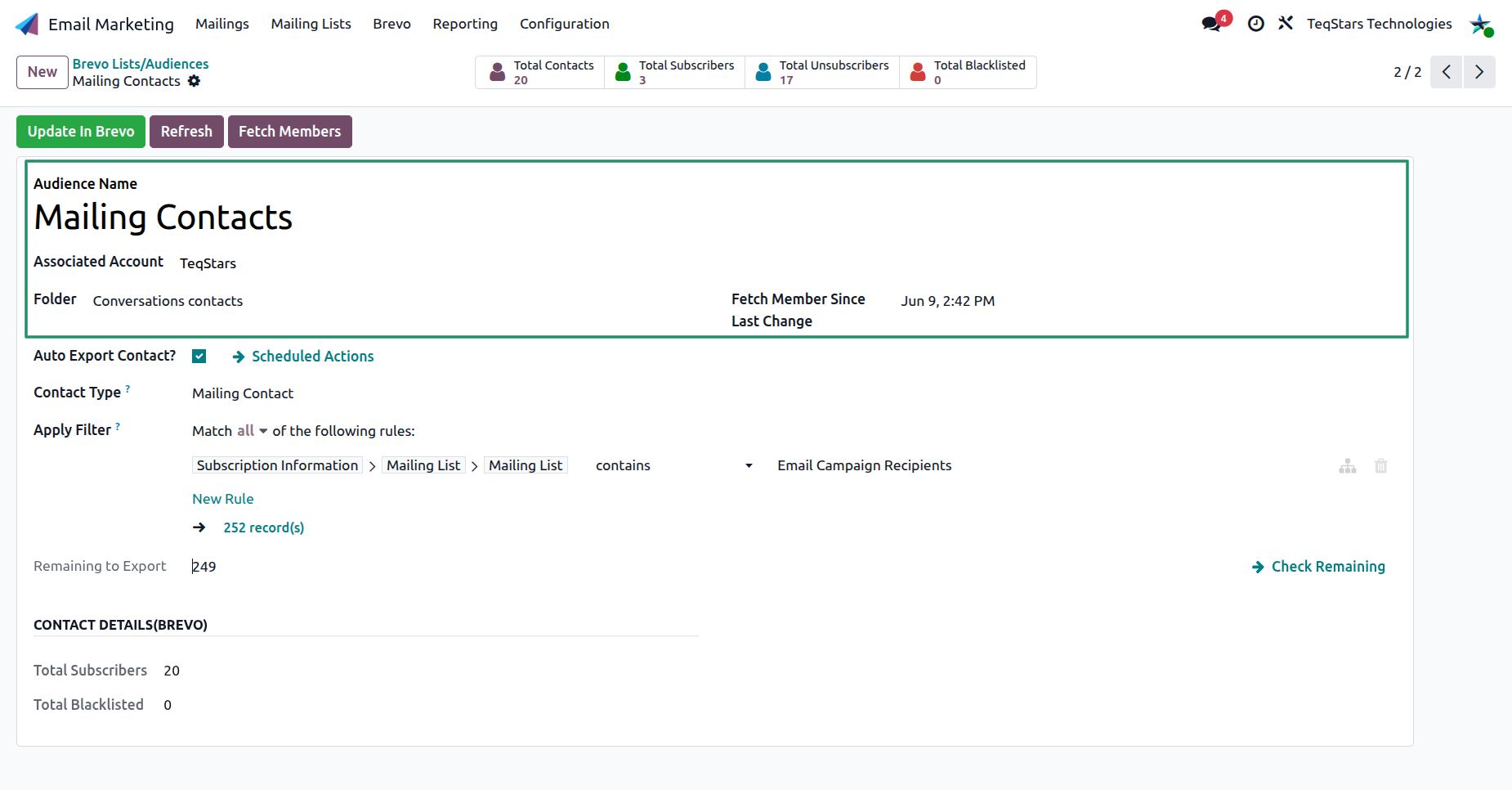
The top of the form shows the key details:
Audience Name and Associated Account: which Brevo account the list belongs to.
Folder: the Brevo folder this list is filed under.
Fetch Member Since Last Change: the last sync time, so Odoo always has updated records.
The smart buttons summarize the list by status: Total Contacts, Total Subscribers, Total Unsubscribers and Total Blacklisted.
Synchronizing a List
The buttons at the top of the form keep an individual list aligned with Brevo:
Export In Brevo: Create a list built in Odoo that doesn’t exist in Brevo yet.
Update In Brevo: Push updated list details from Odoo into the matching Brevo list.
Refresh: Pull the latest list details and statistics from Brevo.
Fetch Members: Retrieve the list’s contacts into Odoo.
Note
Fetch Members queues the contacts in the background. Large lists are imported in batches of 500. They appear in Odoo as the Process Brevo Queue scheduled action runs (see Job Queue, Logs & Operations).
Auto Export Contacts to a List
Instead of pushing contacts one by one, Odoo can automatically export any contact that matches a condition into this list.
On the list form, enable Auto Export Contact?.
Choose the Contact Type: Contact or Mailing Contact.
Define an Apply Filter condition (for example
Email is set). Only matching records are exported.Use Check Remaining to preview the contacts still waiting to be exported.
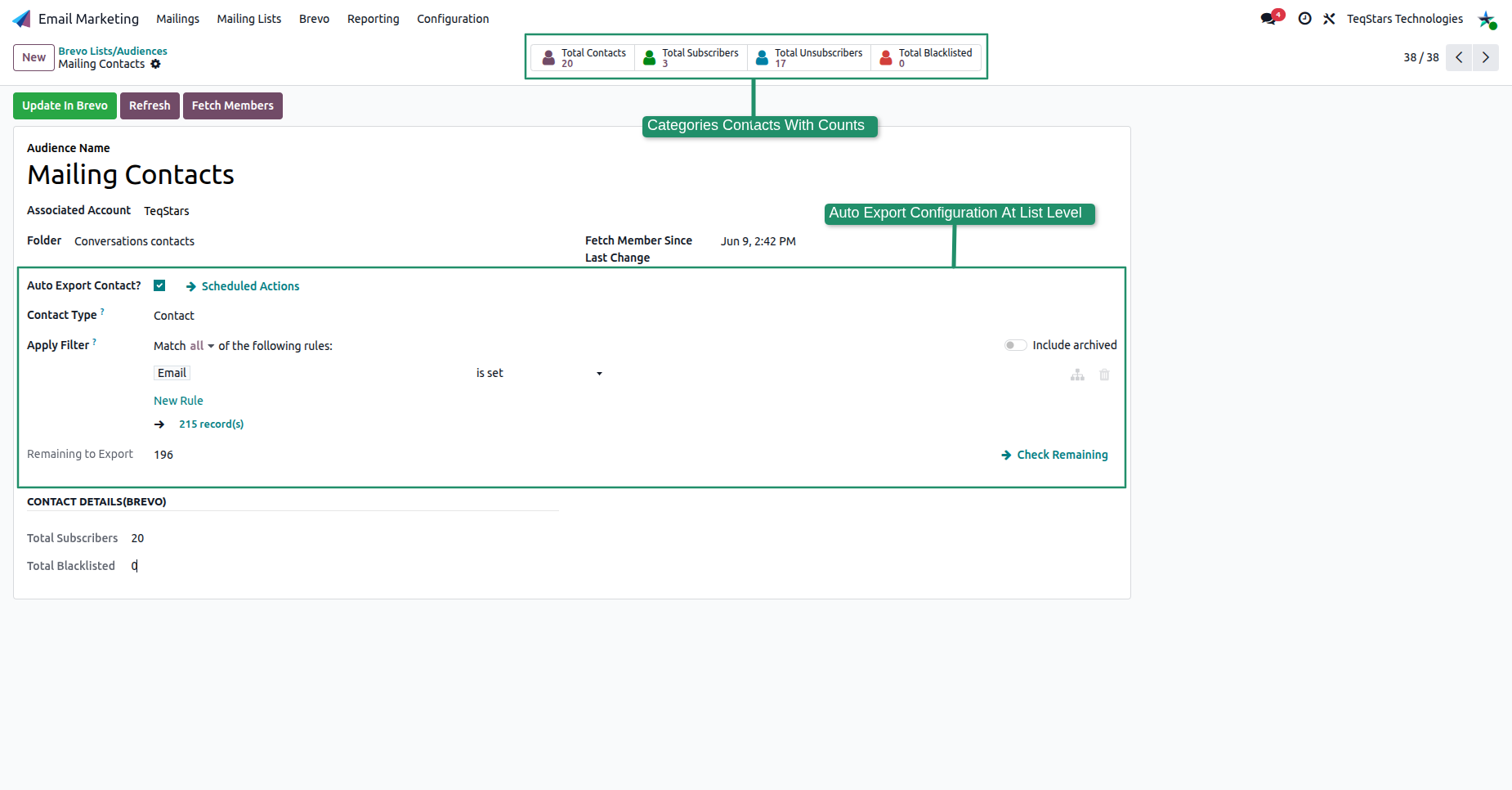
The Auto Export Contact to Brevo List scheduled action then pushes those contacts to Brevo on a schedule (hourly by default).
Tip
Build the filter to match exactly who should receive your emails, for example customers from a specific country or contacts in a particular mailing list, so only the right contact are added to the list.
Batch Export
For large lists, Odoo sends contacts to Brevo in batches (up to 10,000 at a time) and waits for Brevo to finish, recording any rejected rows in the Logs (see Job Queue, Logs & Operations).