
Products Management
The connector exports your Odoo products to Brevo, with SKU, price, category and image, so campaigns and automations can reference real catalog data, and orders can link to the products customers bought.
Open your products from .
Import Products
Go to .
Select your Account(s) and set Operation Type to Product and Sales.
Choose Brevo Products (and, if needed, Brevo Categories), then click Process.
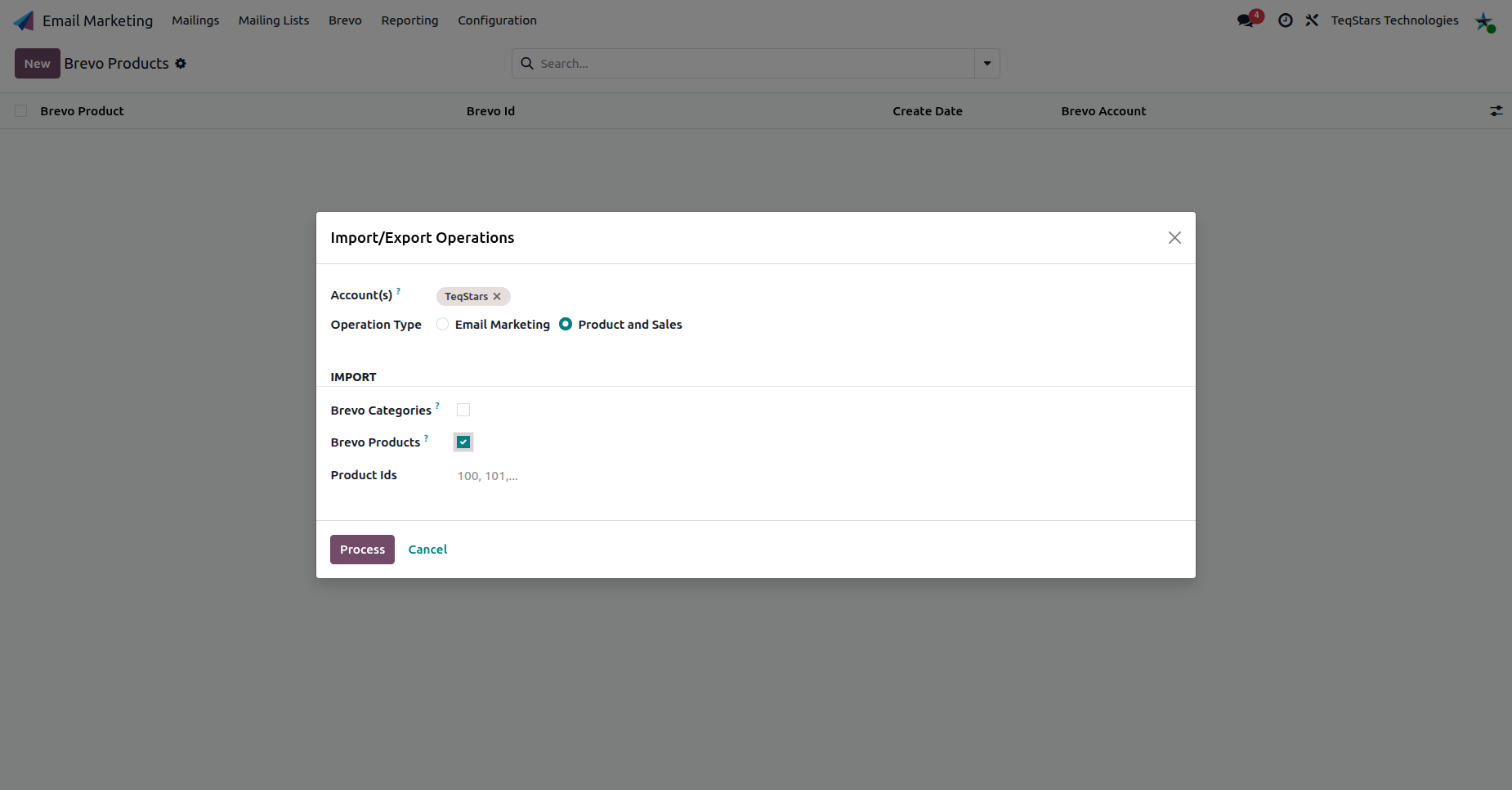
This brings existing Brevo products into Odoo and matches each variant by its SKU.
Import Specific Products
When importing, you can pull only certain products instead of the whole catalog. In the
Product Ids field, enter the Brevo product IDs to import, separated by commas (for
example 100, 101, 102).
Product Ids filled: Odoo imports just those products immediately (a direct sync) and records the result in the Logs.
Product Ids empty: Odoo queues a full product import. All products are fetched in the background by the Process Brevo Queue scheduled action (see Job Queue, Logs & Operations).
Tip
Use Product Ids to quickly re-sync a handful of products that changed in Brevo, without re-importing the entire catalog. The IDs are Brevo’s product identifiers. Find them in Brevo or in a previously imported product record.
Note
Choose Brevo Categories as well to fetch categories in the same run. Import categories before products so each product can be filed under an existing category (see Product Categories Management).
Export Products
You can export or update your Odoo products to Brevo using the Export/Update To Brevo action. Each variant is matched to Brevo by its SKU.
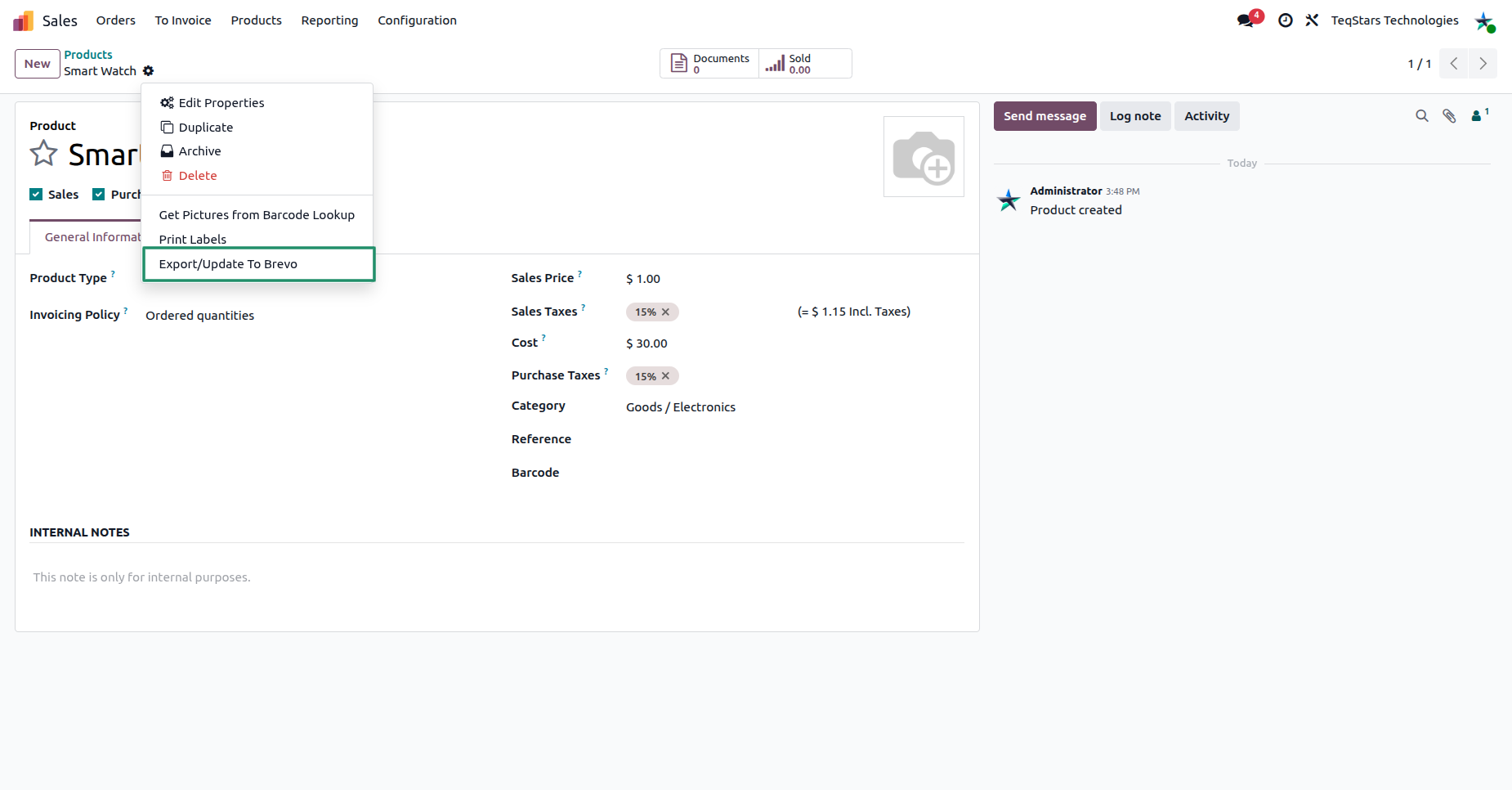
Product Images
Product images are shared with Brevo through a public accessible link, so Brevo can display the correct image for each product and variant in its catalog and reports.
Note
Single-variant templates export as one product, while multi-variant templates export each variant, matched by its own SKU.
Export categories first so each product is filed under an existing category (see Product Categories Management).