Configure DHL Parcel DE (Post & Parcel Germany) Connector
This document provides a complete step-by-step guide to configure and use the DHL Parcel DE (Post & Parcel Germany) connector in Odoo.
Let’s begin with the configurations.
Configure Shipping partner
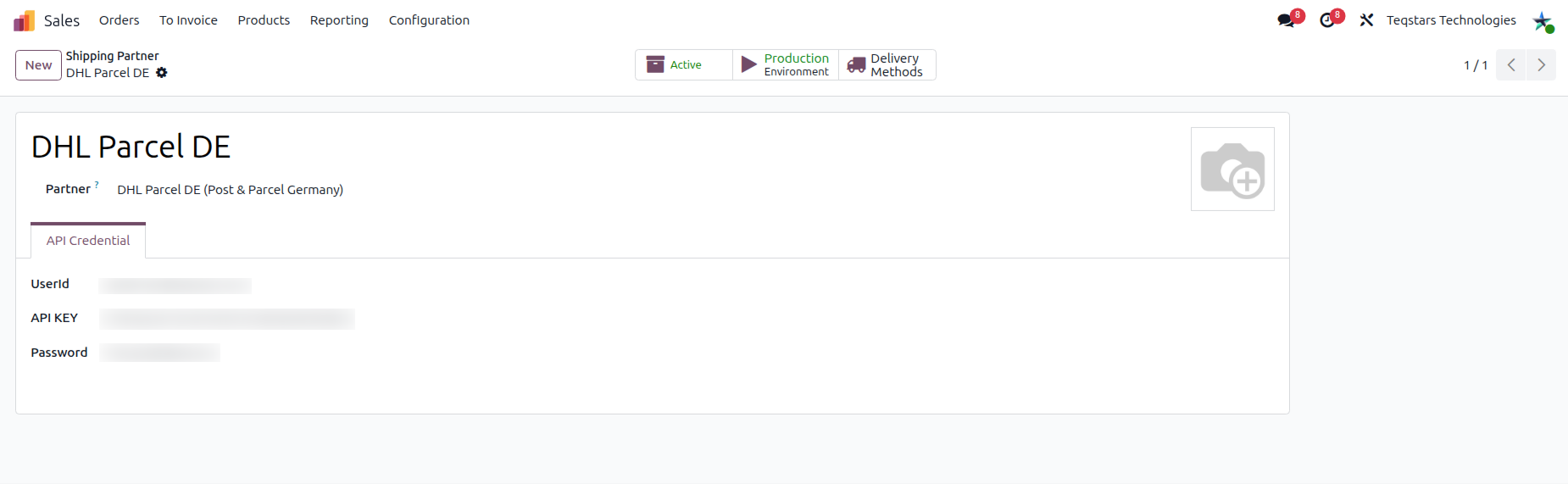
To configure Shipping Partner in Odoo, navigate to and click on New.
To activate a delivery method in a Test Environment, click the Production Environment smart button at the top of the delivery method form. After doing so, the smart button changes to read Test Environment.
Shipping Partner Configuration (Production)
Name: Choose meaningful name for your account (e.g. DHL Parcel DE) .
Partner: Select DHL Parcel DE (Post & Parcel Germany).
UserId: Enter your DHL DE account User Id.
API KEY: Enter your DHL DE account API KEY.
Password: Enter your DHL DE account Password.
Shipping Partner Configuration (Test/Sandbox)
- You can use the sandbox environment with the following business customer user details:
UserId: user-valid
API KEY: Enter your DHL DE account API KEY.
Password: SandboxPasswort2023!
Note
Test environment is useful for validating workflows before going live.
Configure Delivery Method
Now click on Delivery Methods and click on New or navigate to and click on New.
Tip
Delivery Methods can also be accessed by going to .
Note
If the Delivery Methods option is not available from the Configuration drop-down menu, verify whether the feature is enabled by following these steps:
Go to .
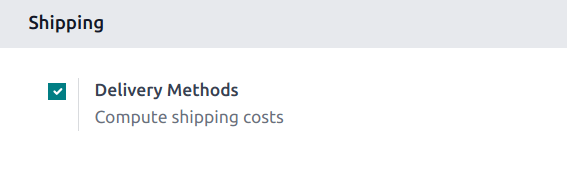
Scroll to the Shipping section and enable the Delivery Methods feature by checking the corresponding checkbox.
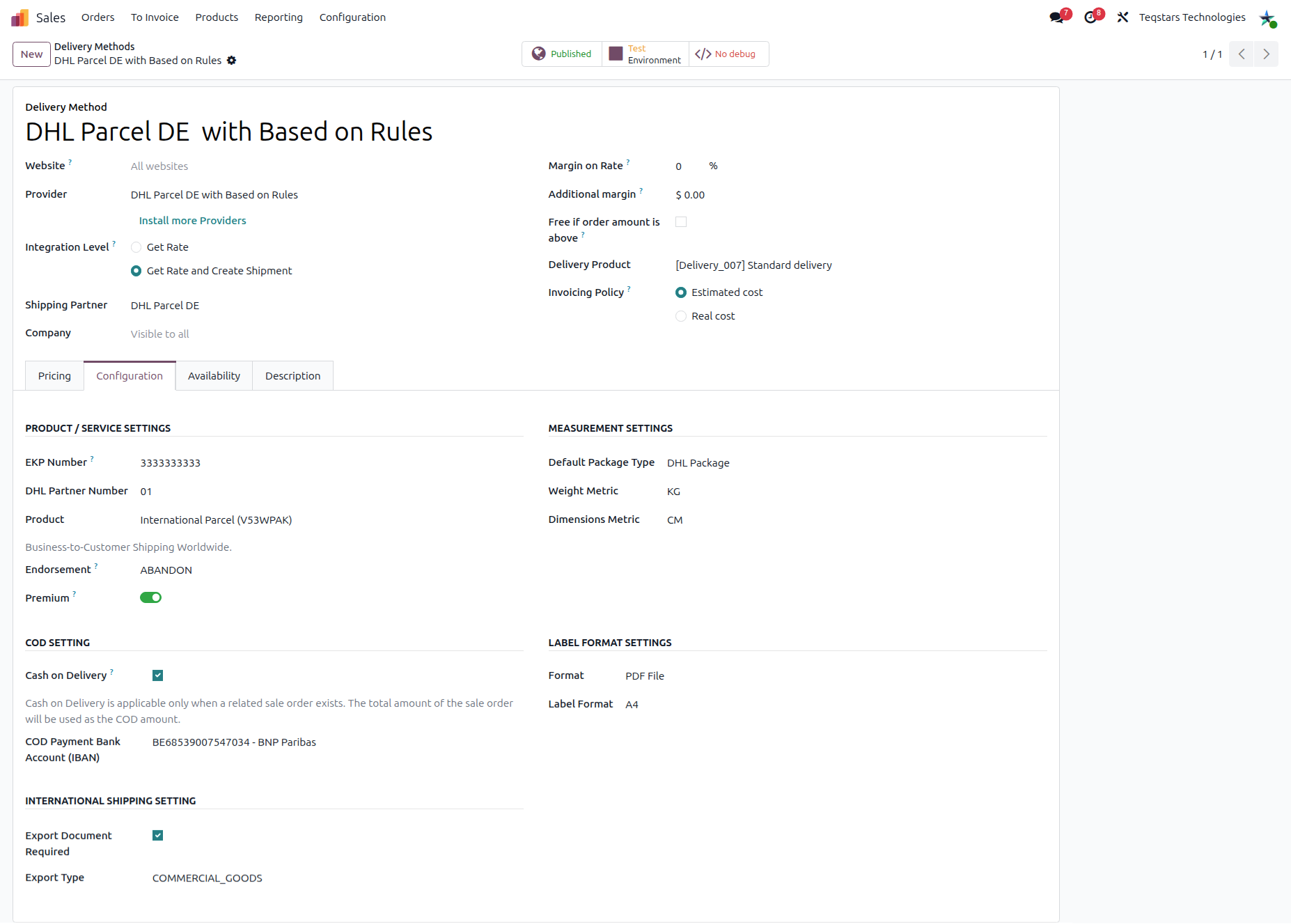
Delivery Method: Choose meaningful name for delivery method (e.g. DHL Parcel DE or DHL Parcel DE with Fixed Price or DHL Parcel DE with Based on Rules).
Shipping Partner: Select shipping partner which you configure.
- DHL DE does not support real-time rate calculation.
You must configure your pricing manually using the supported Provider:
DHL Parcel DE (Fixed Price): Uses predefined cost.DHL Parcel DE (Based on Rules): Uses Odoo shipping rules.
Delivery Product: Assign or create the delivery product that will appear on the sales order line when the cost of shipping is computed.
In the Configuration tab, fill out these fields:
- EKP Number: Your unique 10-digit DHL Customer Number (EKP base).
The EKP is a Uniform customer and product number and thus the key to using Deutsche Post DHL products. It consists of ten digits and is created and assigned by the DHL sales team. Each customer can be uniquely identified via this EKP. It is required for all system connections and must always be transferred.
DHL Partner Number: Specifies your contract or service. Default:
01.Example
If your EKP is 1234567890, you are sending an International Parcel (Product Code 53), and your DHL Partner Number is 01, then your billing number sent to DHL will be: 12345678905301.
Product:Available services per product.
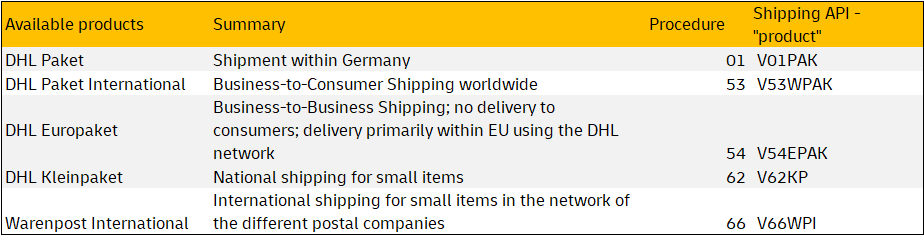
- Premium Service
This behavior is country-specific. Most EU countries do not offer economy services, so the premium option is applied by default. However, some countries (e.g., Switzerland) support both economy and premium services.
- Cash on Delivery:
Enable this option to offer Cash on Delivery (COD) for the selected delivery method. When enabled, the required bank details must be provided to process COD payments.
COD Payment Bank Account (IBAN): The International Bank Account Number where the COD funds should be deposited.
- Endorsement (International only):
Specify the action to be taken by the carrier if an international shipment is undeliverable. This setting is specifically required for the International Parcel (V53WPAK) product:
RETURN: The shipment will be returned to the sender. Note that return shipping fees typically apply.
ABANDON: The shipment will be abandoned or disposed of in the destination country to avoid return shipping costs.
- Default Package Type:
This field defines the fallback packaging used when processing shipments. It is applied based on the following three scenarios:
No Package Type Chosen: Set the Default Package Type for shipments. If no package type is chosen in the delivery order, this one will be applied automatically.
Partial Packaging (Remaining items): If some items in the delivery order are manually put into packages but others are left “loose,” the system applies this Default Package Type to the remaining loose items (the bulk weight) to ensure a label can be generated for the unpackaged portion.
Existing Package Type : If a specific package type is manually selected for a package in the delivery order, Odoo ignores the Default Package Type and uses the dimensions and weight limits of the manually chosen package instead.
Bulky Goods (from package): Indicates that the shipment contains oversized or non-standard items requiring special handling by DHL. This may result in additional charges and depends on DHL service availability.
Important
To set a default package type, the Packages feature must be enabled in .
- Used for international shipments:
Requires Export Document: Check this if customs documentation needs to be generated.
Export Type: Define the purpose of the shipment (e.g., Commercial.).
Export Description (if OTHER): Required if the Export Type is set to ‘OTHER’.
Use Delivery Method In Sale Order
To add a shipping cost to a Sales Order, click button Add Shipping on the quotation and select the desired delivery method.
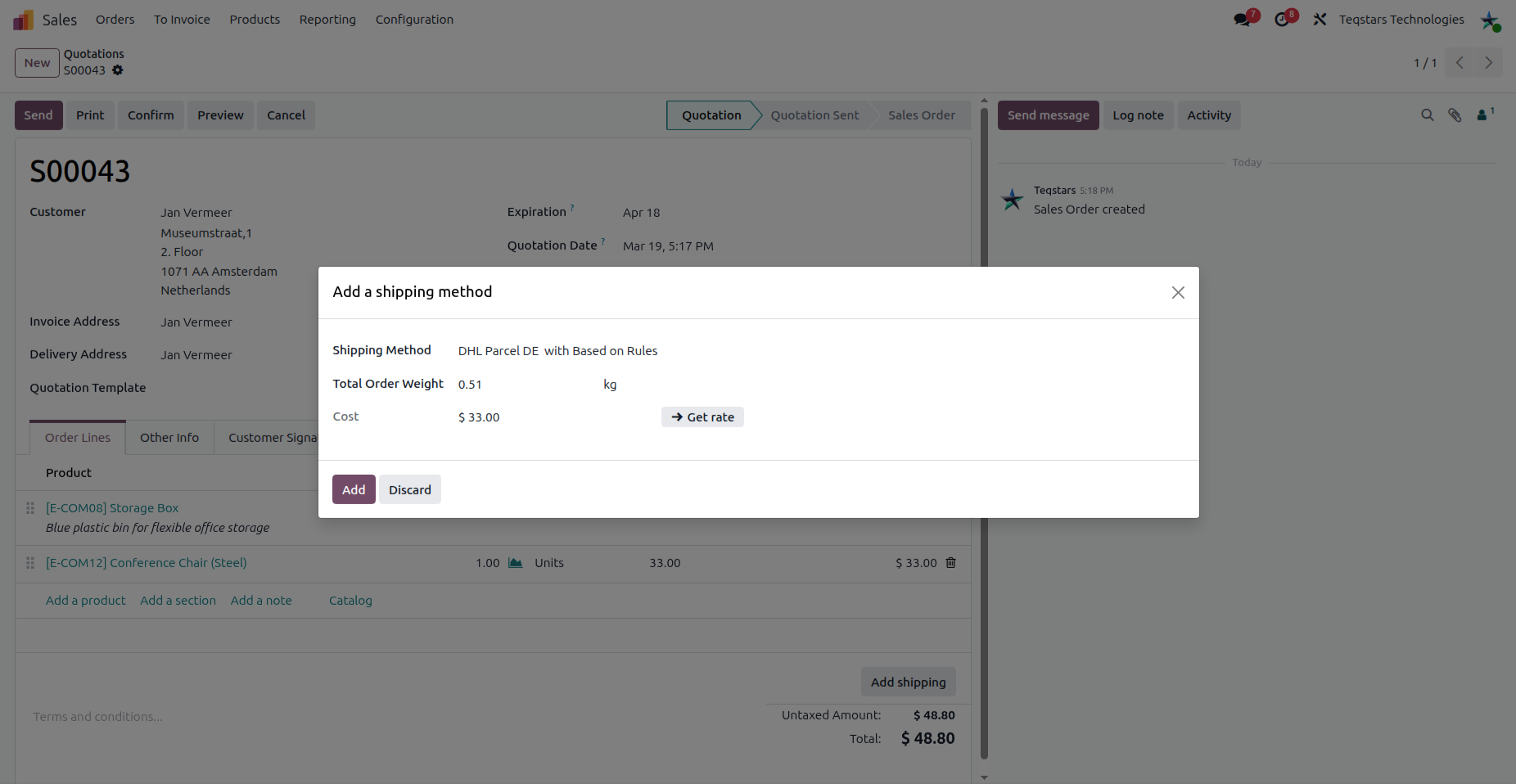
Shipping Method: Select the DHL DE delivery method that you configured (e.g., DHL Parcel DE, DHL DE Fixed Price, or DHL DE Based on Rules).
Total order weight: It automatically calculates order weight based on selected product in sale order or you can enter manually.
- Get Rate:
DHL DE does not support real-time rate calculation.
- If you are using:
DHL Parcel DE (Fixed Price): The predefined fixed price will be applied.DHL Parcel DE (Based on Rules): The price will be calculated based on configured shipping rules.
Click on Add button to add shipping charge in sale order
Use Delivery Method In Website Order
Customers can select the DHL delivery method during checkout based on your configuration.
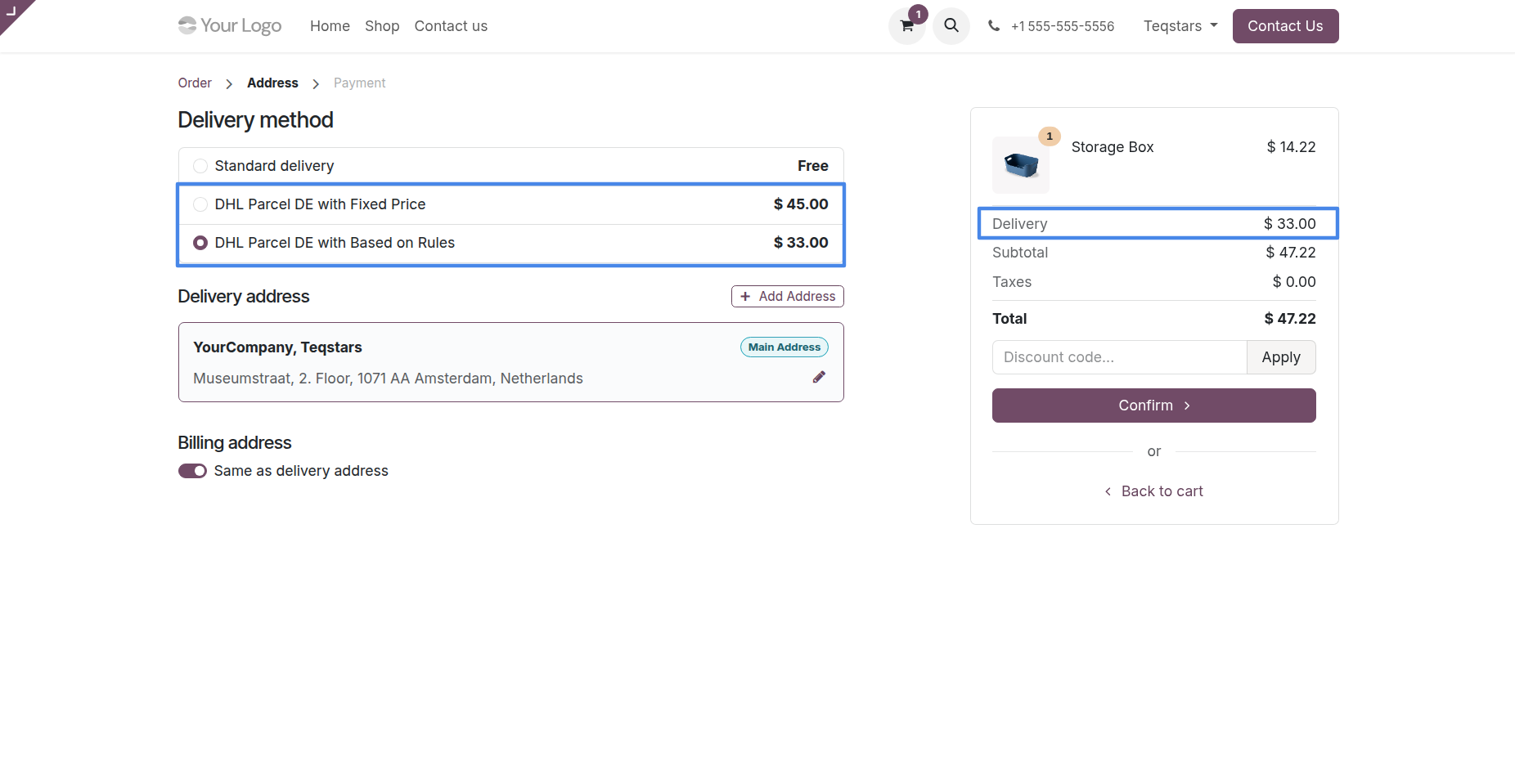
Multiple Package Handling
Configuring Packages by doing Put in Pack Operation in case if you are using multiple packages.
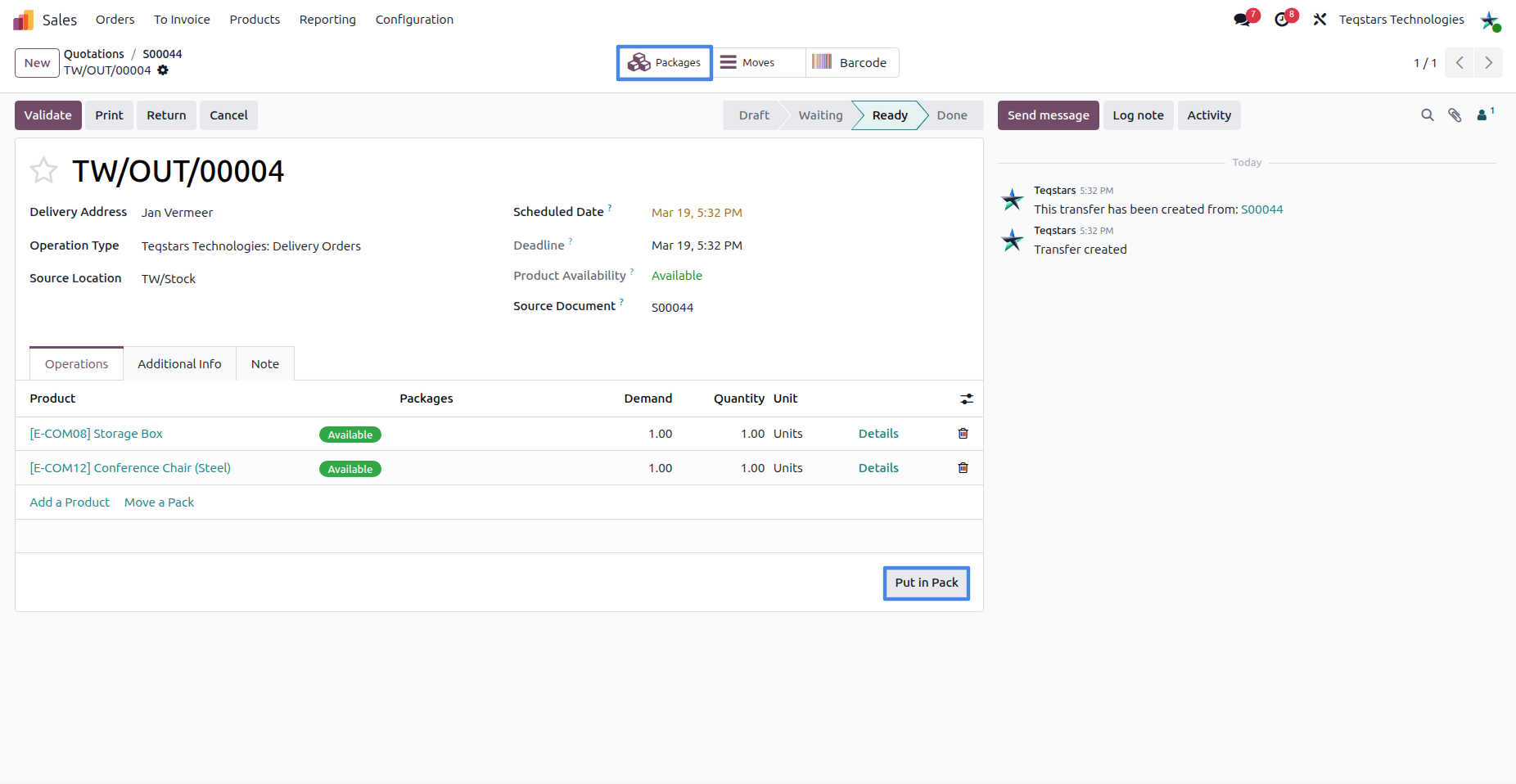
Validate Delivery Order
After confirming a sale order, process delivery:
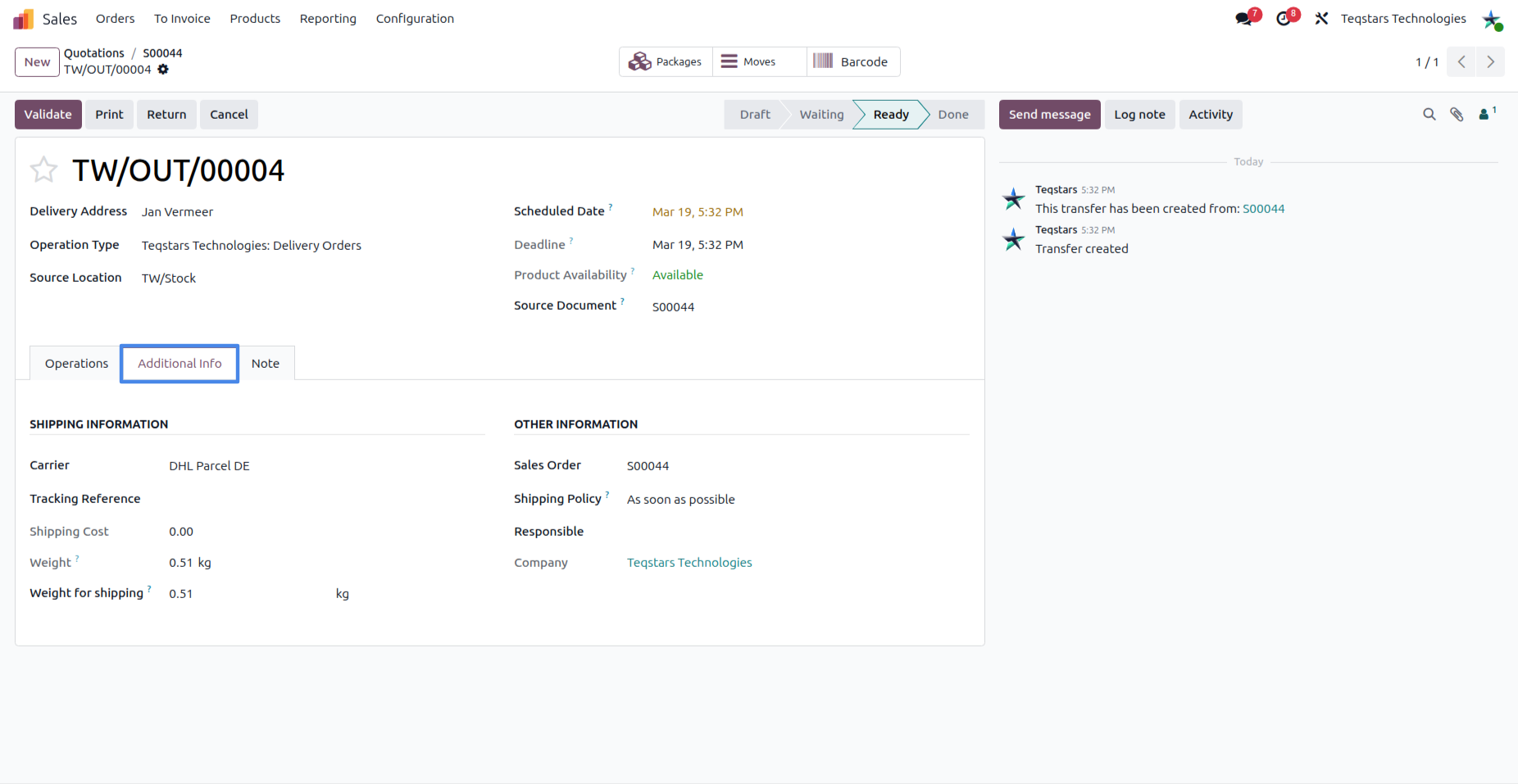
Carrier: Choose the shipping method which you configure for DHL DE delivery.
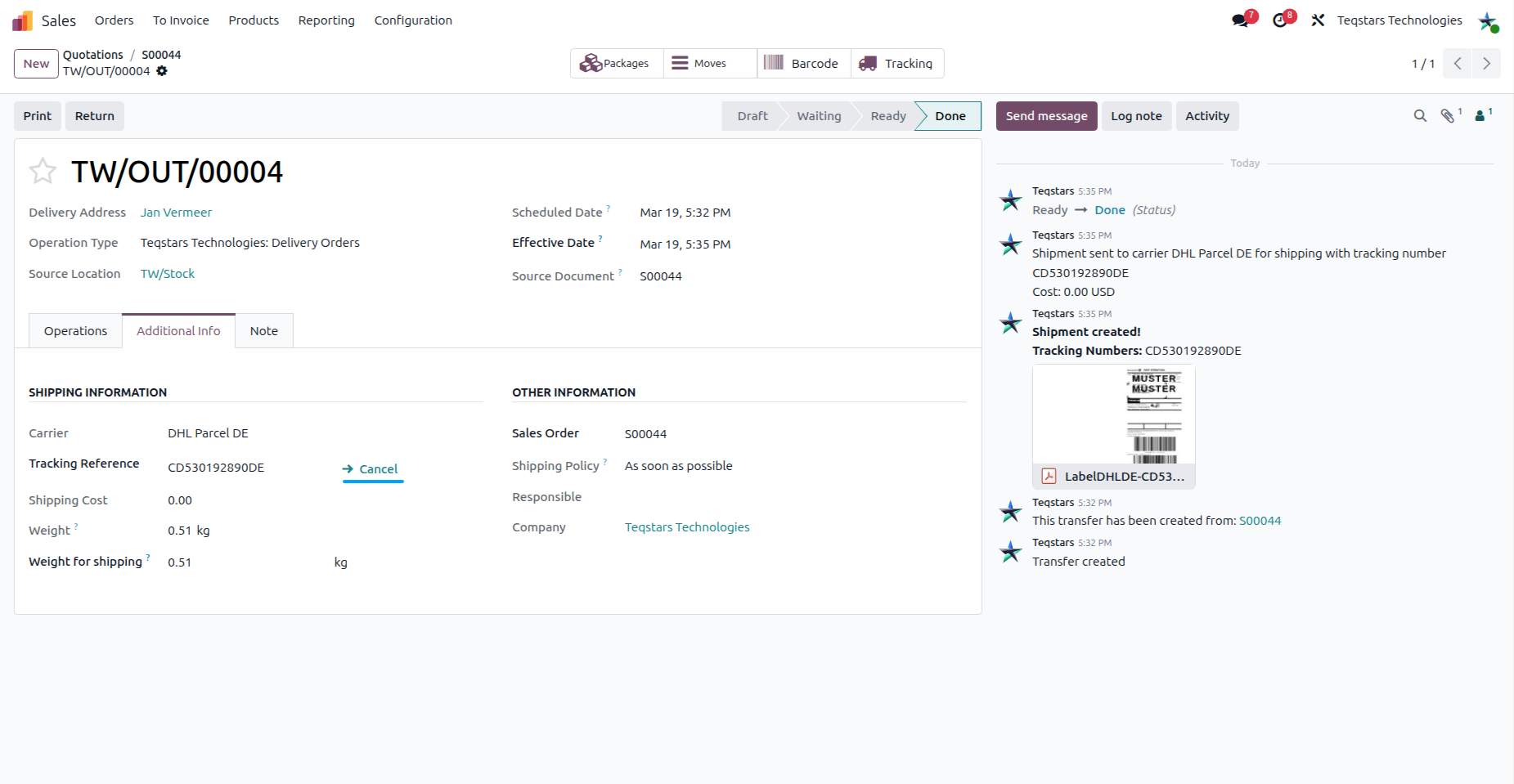
Click Validate to create shipment and generate label.
Tracking and shipping information in delivery order
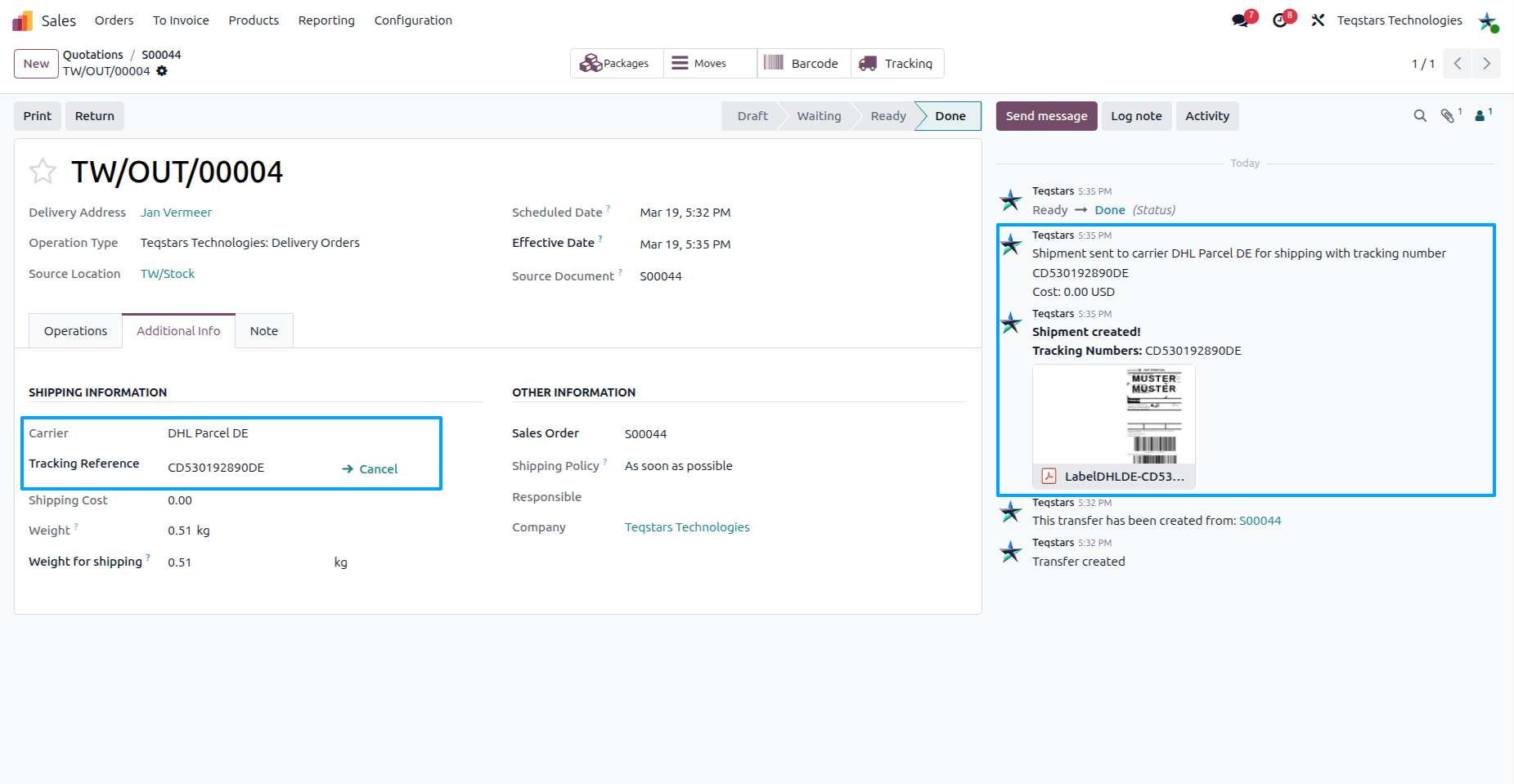
- After validation:
The Tracking number is generated, and the Shipping Label can be viewed in the chatter.
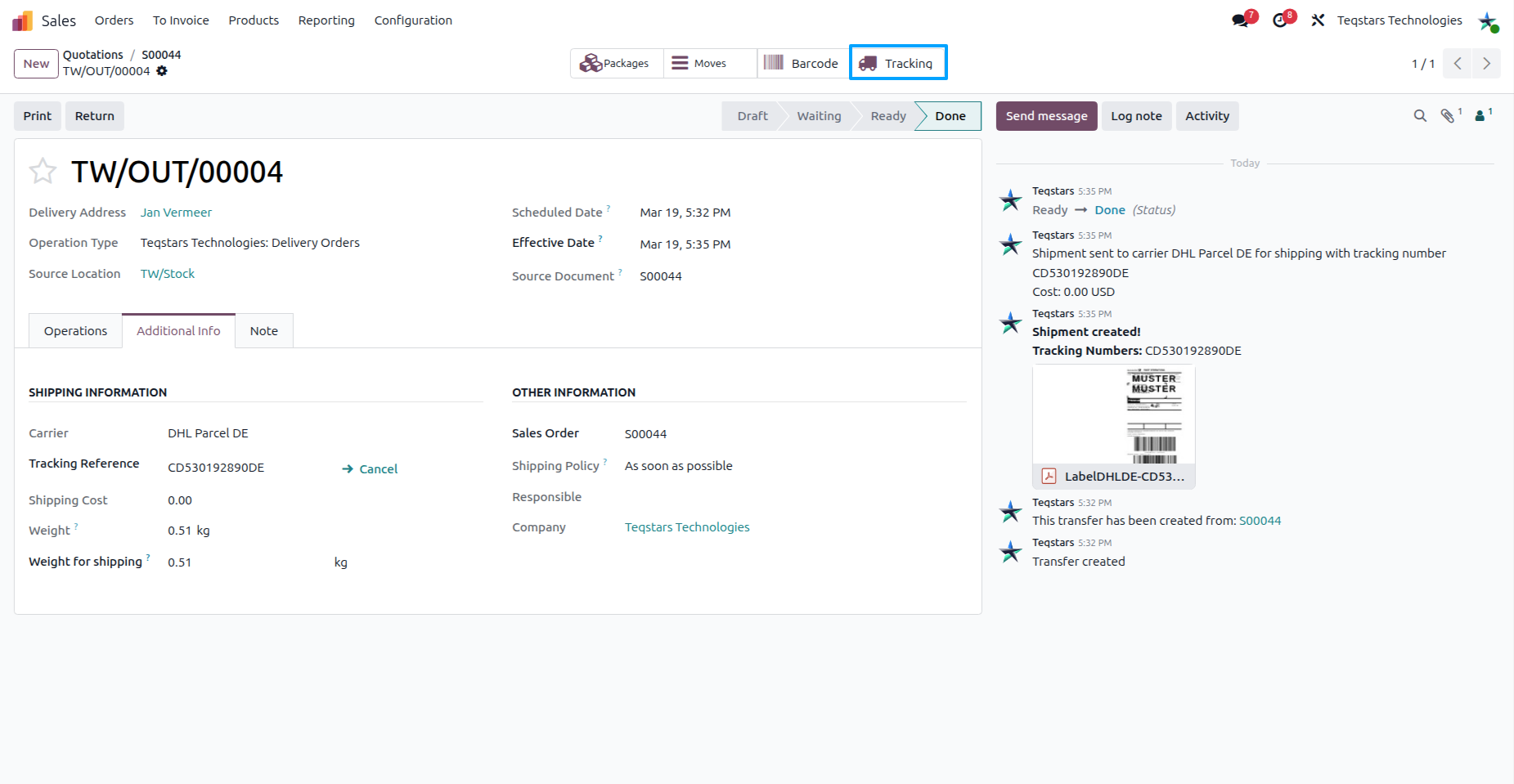
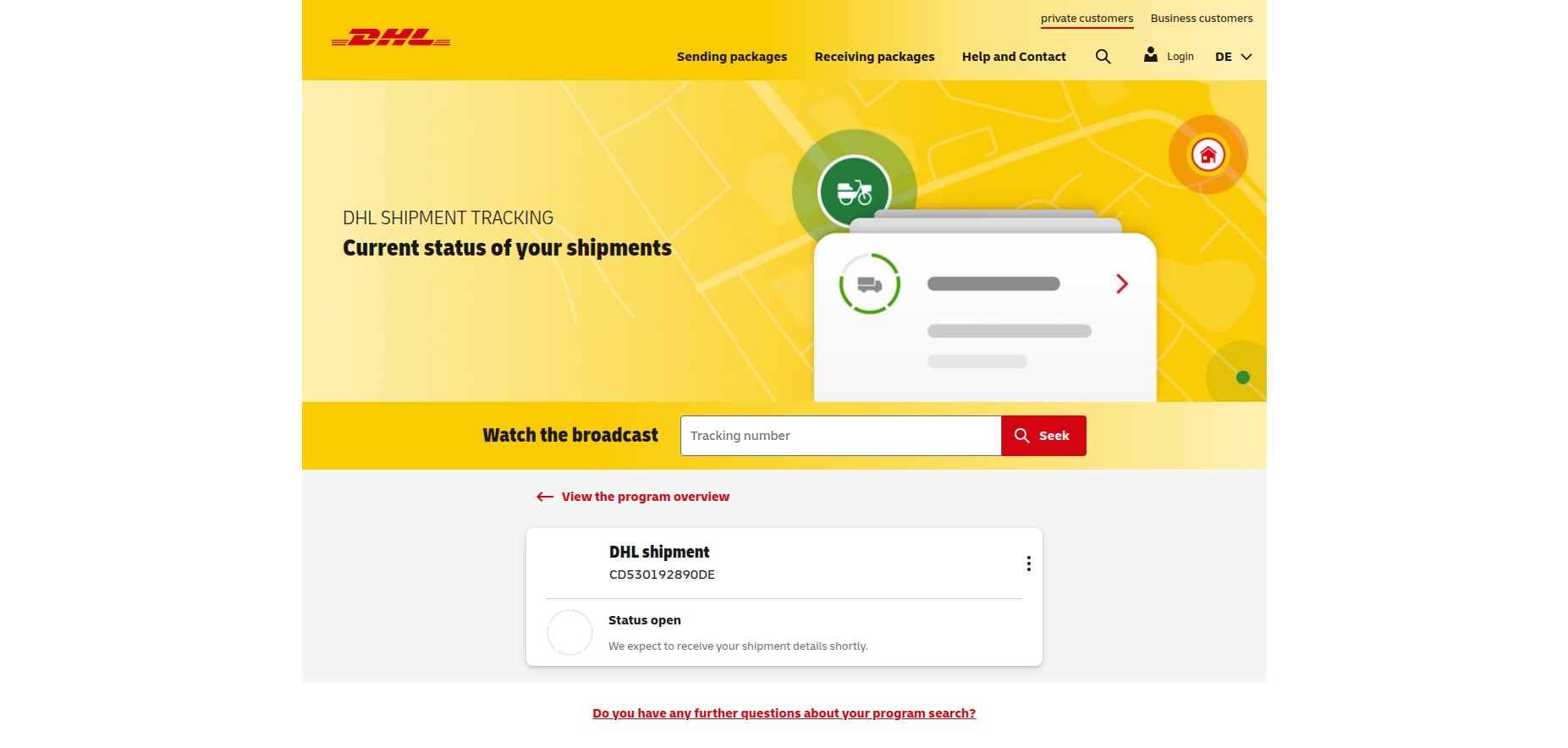
Realtime Tracking
When you click on Tracking, it will show the detailed status, location, and updates for the shipment, allowing you to stay informed on its progress in real-time.
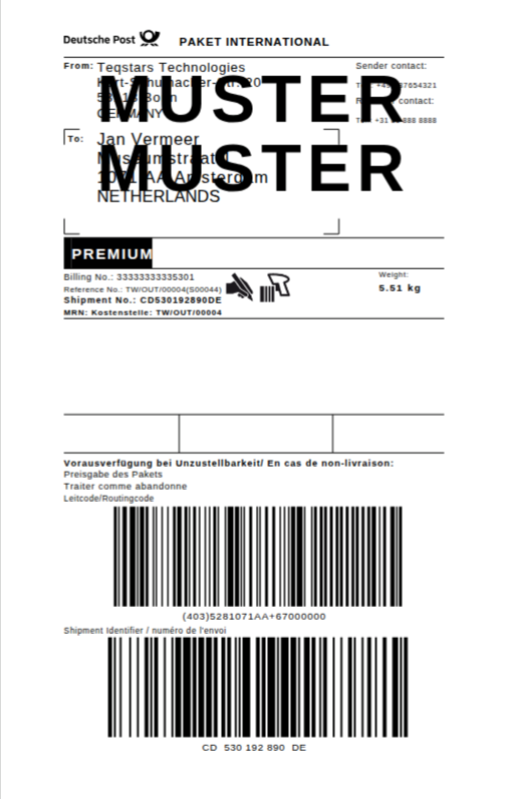
View Generated Label
Shipping labels are automatically generated and attached to the delivery order.
Cancel Shipment
You can cancel shipments directly from Odoo using the Cancel button.